You built the website. You published the content. You did everything right — or so you thought. But when you search your website on Google, nothing shows up.
This is one of the most common and frustrating problems website owners face. The good news is that in most cases, it is fixable — and the fix is simpler than you think.
This guide breaks down every possible reason your website is not showing on Google and exactly what to do about each one.
First — How to Check If Your Website Is on Google
Before assuming the worst, confirm the problem first.
Open Google and type:
site:yourwebsite.com
What the result means:
| Result | What It Means |
|---|---|
| Pages appear | Your site is indexed — ranking problem, not indexing |
| 0 results | Your site is not indexed at all |
| Some pages appear | Partial indexing — some pages have issues |
This one check tells you exactly where the problem is.
Reason 1 — Your Website Is Too New
Google does not index websites instantly. After launching a new website, it can take anywhere from a few days to several weeks before Google even discovers it.
Why this happens: Google's crawlers (Googlebot) work on a schedule. New websites with no backlinks and no authority have very low priority in the crawl queue.
Fix:
- Submit your sitemap directly in Google Search Console
- Get at least one backlink from an already-indexed website
- Use an indexing tool to directly ping Google instead of waiting
Reason 2 — No Sitemap Submitted
A sitemap is a file that tells Google exactly which pages exist on your website. Without it, Google has to discover your pages on its own — which takes much longer.
Fix — Submit Your Sitemap:
- Go to Google Search Console
- Click Sitemaps in the left menu
- Enter your sitemap URL — usually
yourwebsite.com/sitemap.xml - Click Submit
Most WordPress sites generate sitemaps automatically via plugins like Yoast SEO or Rank Math.
Reason 3 — Noindex Tag Is Blocking Google
This is the most overlooked mistake — and it is completely self-inflicted.
A noindex tag tells Google: "Do not index this page." Developers often add this during website building and forget to remove it after launch.
How to check:
Open your page source code (Ctrl + U) and search for:
<meta name="robots" content="noindex">
If you find this — that is your problem.
Fix:
- Remove the noindex tag from all pages you want indexed
- In WordPress — check Settings → Reading → make sure "Discourage search engines" is unchecked
Reason 4 — Robots.txt Is Blocking Crawlers
Your robots.txt file controls which parts of your site Google can and cannot crawl. A misconfigured robots.txt can accidentally block your entire website.
How to check: Visit yourwebsite.com/robots.txt
If you see:
User-agent: *
Disallow: /
This means Google is blocked from crawling everything.
Fix: Change it to:
User-agent: *
Disallow:
This allows Google to crawl your full website.
Reason 5 — Your Website Has No Backlinks
Google discovers new pages primarily through links. If no external website links to yours, Google may never find it — or deprioritize crawling it entirely.
Fix:
- Get listed on relevant directories
- Reach out for guest post opportunities
- Share your content on forums and communities in your niche
- Get even one link from an already-indexed website — this alone can trigger discovery
Reason 6 — Low Quality or Thin Content
Google's algorithm evaluates every page before indexing it. Pages with very little content, copied text, or no real value to users are often skipped entirely.
What Google considers thin content:
- Pages with less than 300 words
- Content copied from other websites
- Pages with no clear topic or purpose
- Auto-generated content with no human value
Fix:
- Write original, helpful content that genuinely answers a user's question
- Aim for minimum 800–1000 words for competitive topics
- Make every page earn its place in the index
Reason 7 — Google Penalty
If your domain was previously penalized by Google — either manually or algorithmically — it will struggle to get indexed regardless of what you do.
How to check for manual penalty:
- Open Google Search Console
- Go to Security & Manual Actions
- Click Manual Actions
- If a penalty exists, it will be listed here with details
Fix:
- Address the exact issue mentioned in the penalty notice
- Remove or disavow spammy backlinks
- Fix thin or duplicate content
- Submit a reconsideration request after fixing the issues
Reason 8 — Crawl Errors on Your Website
Technical errors can prevent Google from successfully crawling your pages even when it tries.
How to check:
- Open Google Search Console
- Go to Pages under Indexing
- Look for pages marked as "Crawled — currently not indexed" or "Discovered — currently not indexed"
These statuses tell you Google found the page but chose not to index it — usually due to quality or technical issues.
The Fastest Fix — Force Google to Notice Your Website
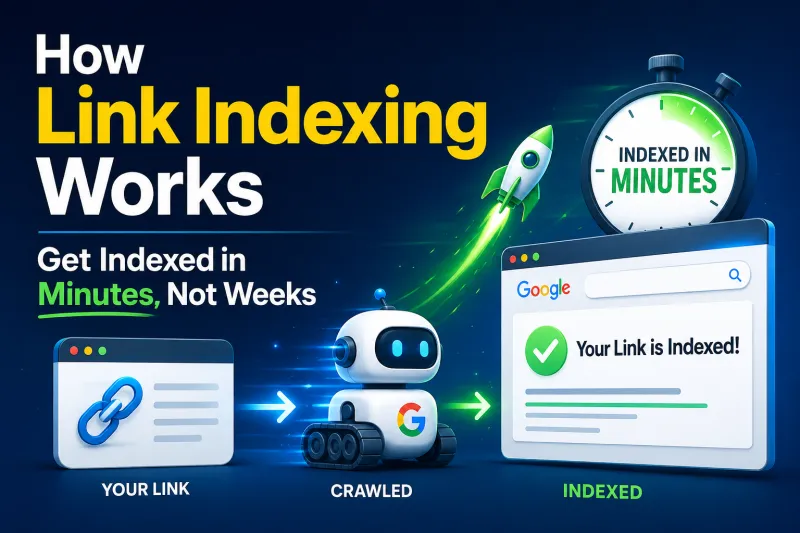
Even after fixing all the above issues, you are still at the mercy of Google's crawl schedule. Googlebot visits websites on its own timeline — which can mean days or weeks of additional waiting after your fixes are in place.
The fastest way to accelerate this process is to directly signal Google that your pages are ready to be indexed.
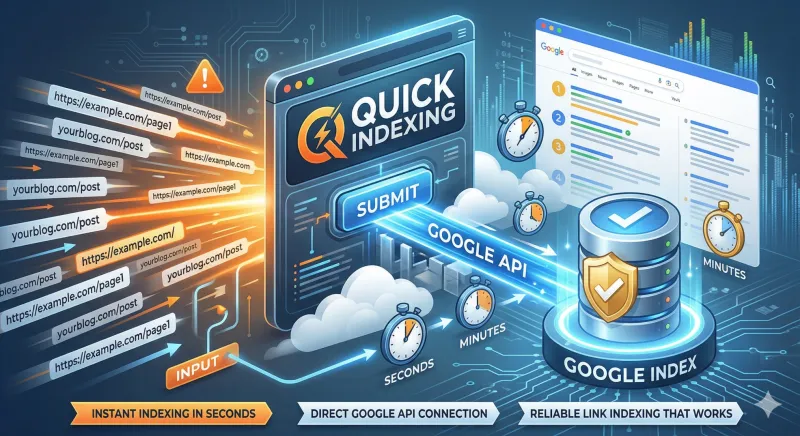
QuickIndexing.com connects to Google's Indexing API and submits your URLs for immediate processing — bypassing the crawl queue entirely. Instead of waiting for Googlebot to come to you, you go directly to Google.
When to use it:
- After fixing noindex or robots.txt issues
- After publishing new pages or blog posts
- After earning new backlinks — submit the linking page URL
- After a website redesign or migration
Complete Fix Checklist
| Problem | Quick Check | Fix |
|---|---|---|
| Site not in Google |
site:yourwebsite.com returns 0 |
Submit sitemap, request indexing |
| Noindex tag present | Check page source for noindex | Remove the tag |
| Robots.txt blocking | Visit /robots.txt | Fix Disallow rule |
| No sitemap | Check GSC Sitemaps section | Submit sitemap.xml |
| No backlinks | Ahrefs / Moz check | Build first few links |
| Thin content | Word count + originality check | Rewrite and expand |
| Manual penalty | GSC Manual Actions section | Fix issues + reconsideration |
| Slow crawling after fixes | Pages still not indexed | Use QuickIndexing.com |
Summary
Your website not showing on Google is always caused by one of a handful of fixable problems. Work through the checklist above systematically — most issues are resolved within 24–48 hours of fixing.
The final step that most website owners skip is making sure Google actually comes back to re-crawl your fixed pages quickly. Do not wait weeks for Googlebot to revisit. Quick Indexing makes sure every fixed page and every new page gets into Google's index as fast as technically possible.